
Choosing Google API Output
When you send a request to Google, you also specify what information you want to get as part of the response.
API Key + Search Coordinates + Search Term + List of Desired Attributes for each result
It’s almost inevitable that you would like to know the business name for instance, how it is categorised and its location – but you may be less interested to know its opening hours, or if it is dog-friendly.
Depending on the kind of searching you are doing, you can tailor the responses so you are not dealing with unnecessary data. We have a whole guide on the API and all of the possible things it can return so if you want a deep dive then check it out.
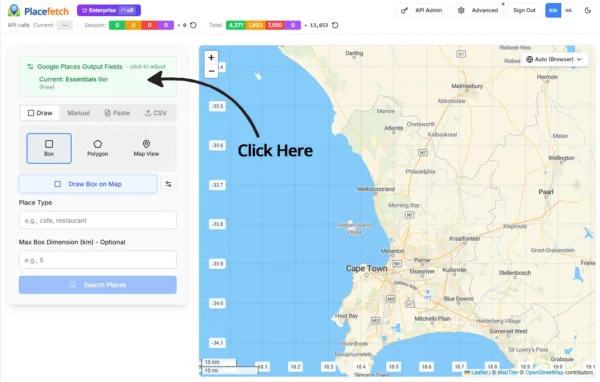
Clicking on the Google Places Output Fields panel will open a panel where your options are laid out. As set out in the API guide, you will see that different pieces of information are supplied in the 4 ascending Places API tiers. Depending on what information you need, you can choose how far up those tiers you go to get the data you want.
By default the system is set up to initially only use the free Essentials tier – this ONLY gives you the place ID though. Not name, not location – so whilst you will know results exist in your search box for your search term you won’t yet know anything further about them.
It’s worth doing a few searches like this to give yourself a feel for the software before adding some additional output fields and starting to explore the Google API on higher tiers.
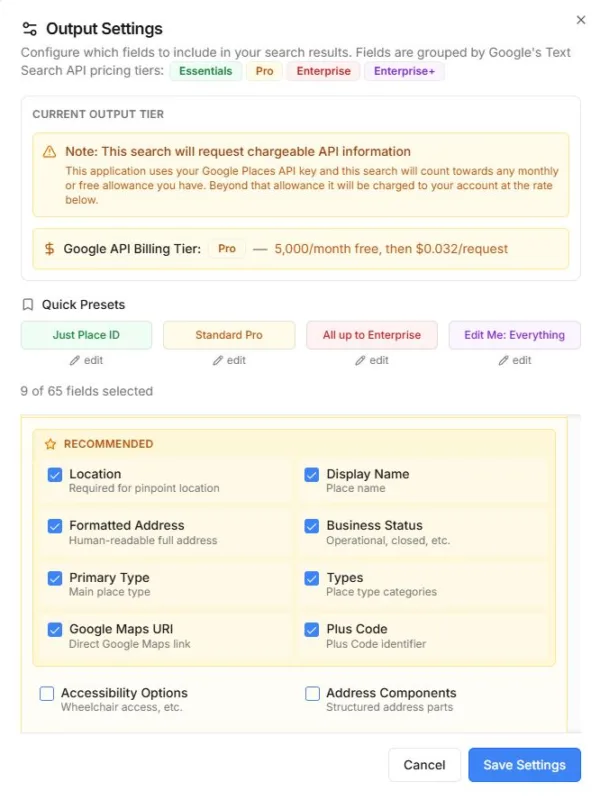
In the window that appears when you click the Output panel, you can scroll down and start selecting some additional and useful information to return in your search. In this example above, in addition to the Place ID from the Essentials Free tier, the user has selected all of the recommended search output fields for basic searching. These are all in the Google API Pro tier, so any requests made now may be billable under Google’s pricing model once any applicable free usage thresholds are exceeded.
You will always be able to see what tier your searches are working on by looking at the colour coding which is consistent across Placefetch – Green = Free, Yellow = Pro, Red = Enterprise and Purple = +Atmosphere.
When you have selected your output remember to Save Settings. When you search now, your results grid will show all of the fields that have been selected here.
