
Results and Exporting Data
As your search runs, results will populate the grid below the map area. The column headings reflect the output fields you selected in your Output Settings. When the search is complete, results can be exported in several formats.
If your grid contains many columns, you can scroll horizontally using the bar at the bottom of the table to view additional fields.
For larger searches with many selected output fields, you may notice reduced responsiveness in the browser due to memory usage. If this occurs, consider narrowing the output selection or working with smaller result sets.
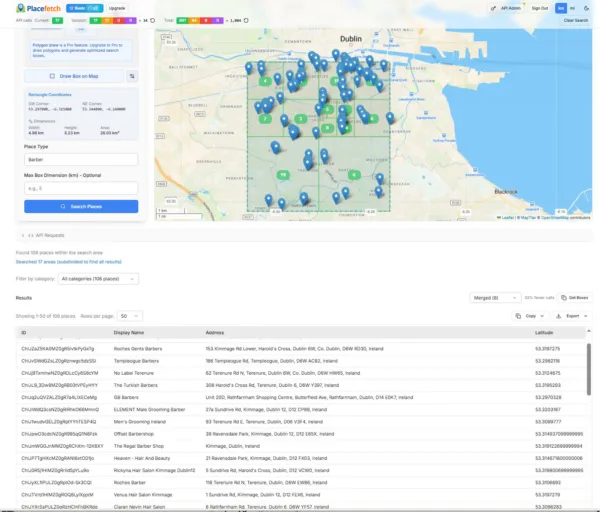
At the top right of the results grid, you’ll see export controls. All users have access to the Copy function, which provides two options:
- Copy with Headers
- Copy Data Only

Both options copy the entire dataset returned by the search (not just the rows visible on the current page), making it easy to paste into spreadsheet software or other tools.
Depending on your subscription level, additional export formats may be available:
- CSV (all plans)
- JSON (Pro and above)
- KML (Pro and above)
- Google Sheets (Pro and above)
Selecting an export option will download the file directly to your device or transfer it to the chosen service.
