How to Search – Box & Map View
Available on all Placefetch plans, Box View and Map View provide flexible ways to define search areas depending on your device and workflow. Box View is optimised for desktop use, while Map View is better suited to touch-based devices such as tablets or phones.
Draw a box
The objective of drawing a box is to define the hard boundary for Google to restrict its results to. Nothing will be included from outside it, so you can be sure that your search only included the area that you specifically chose.
Move the map with your mouse, and zoom in and out with the mouse wheel until you get to the region and altitude in which you want to search. If you are new to using Placefetch, make sure that you zoom in a little more than normal to ensure that you are starting with a small search area for for your first searches. Once you are happy with the area to search, change the mode of the mouse by clicking the pulsing blue button saying “Draw Box on Map”.
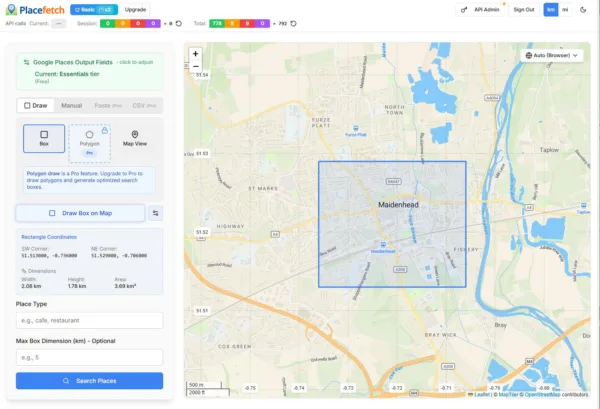
The button will change to “Drawing Box (click & drag)” at which point you can move over to the map, click a point and then drag the size of the box you would like before releasing the mouse button. See above for an example which has just been drawn, and note the new panel on the left that has appeared to give you information about the box in terms of its coordinates and its dimensions.
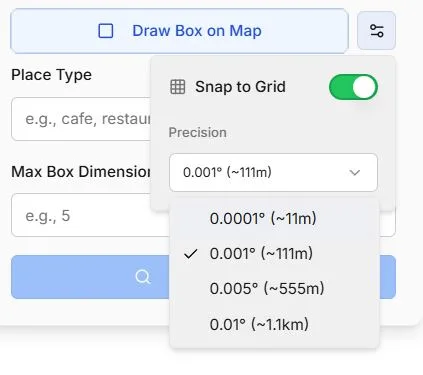
Snap to Grid – If you would like your box points to be more consistently aligned to latitude and longitude decimal places, you can optionally use the Snap to Grid feature which is accessed via the slider button next to the Draw Box main button. Switch the feature on, and then choose your level of resolution.
Place Type
The place type defines what kind of locations you want to search for. Placefetch uses Google’s place categorisation system, which includes a wide range of business and location types.
Choose a place type that best matches your objective. Results will vary depending on the category selected and the geographic characteristics of the area being searched. Consider varying the size of the box you draw to be relative to the expected volume of results – for example there will be less bowling alleys than restaurants in a given area.
Max Box Dimensions (optional)
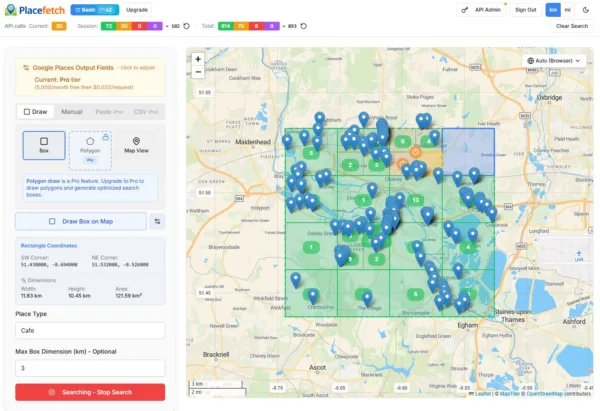
For larger areas or locations with a high concentration of places, you can optionally define a maximum box size. When enabled, Placefetch will process the selected area in smaller sections rather than treating it as a single large region.
This setting can help provide more structured coverage across broad or densely populated areas.
Select Map View
Map View is designed primarily for touch-screen devices. Instead of manually drawing a box, you can position and zoom the map so that the visible region represents the area you want to search.
Click Select Current View to use the current map display as your search boundary. Once selected, you can define your search term and run the search as usual.
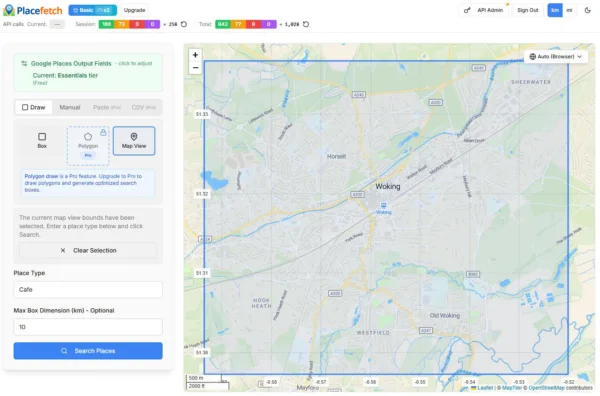
With an area selected, everything now operates in the same way as in a normal box search – set your search term, optionally restrict box sizes and click search to get results.
