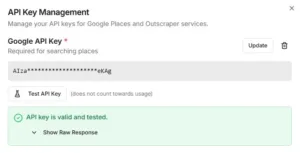
Get your Google API key to make Placefetch Work
Welcome to the Guide! Getting the API Key from Google takes a few steps through a part of Google you’ve probably never seen before….. But by following this step by step guide we can walk you though it quickly, without stress and get you up and running in a few minutes.
When you first log in to Placefetch you should be presented with this box before you can search:
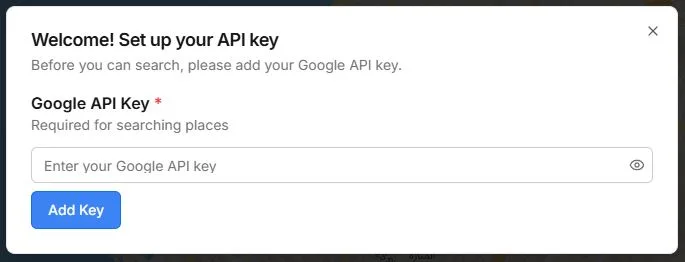
If you can’t see this box, or want to revisit it to change your key, click “Settings” in the top right of Placefetch, then click “Google API Key”.
This guide was last checked for accuracy in January 2026.
Step 1 – get logged in
- Navigate to: https://console.cloud.google.com/
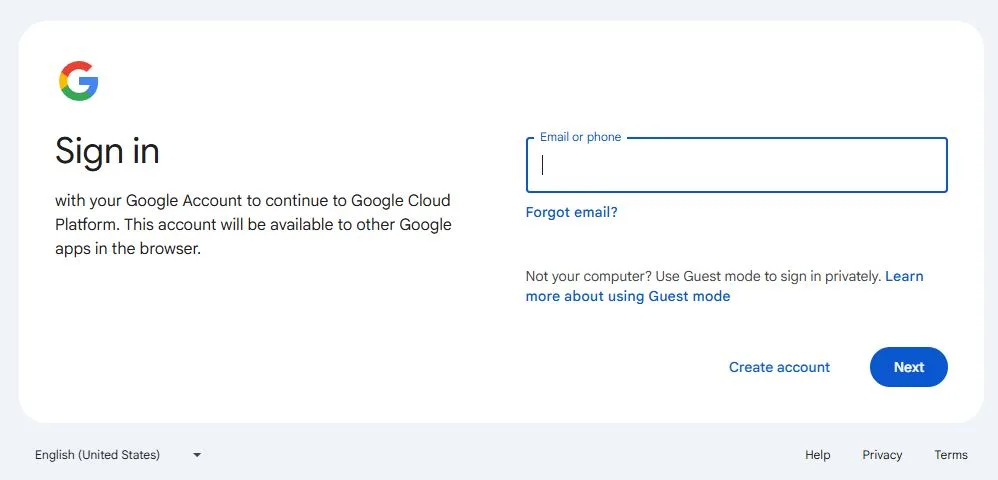
- Sign in with your Google account.
- If you don’t have a Google Account use the “Create Account” option and then return here to log in with it.
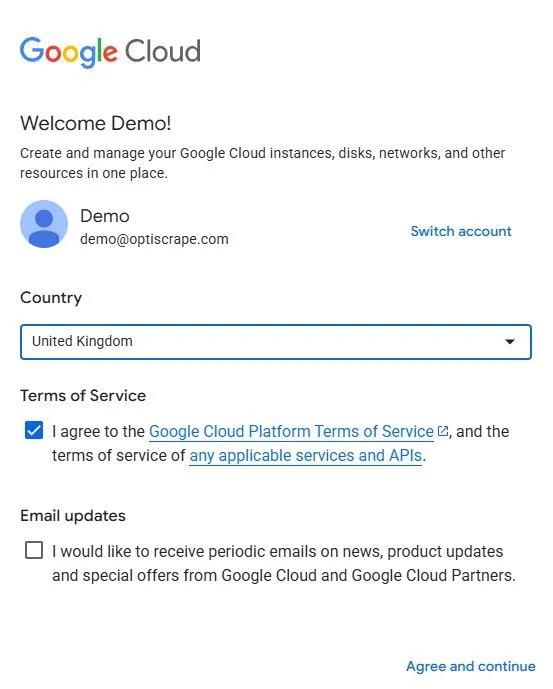
- Once you are in, set your country and agree to Terms of Service.
Step 2 – Get Set Up for a free Account
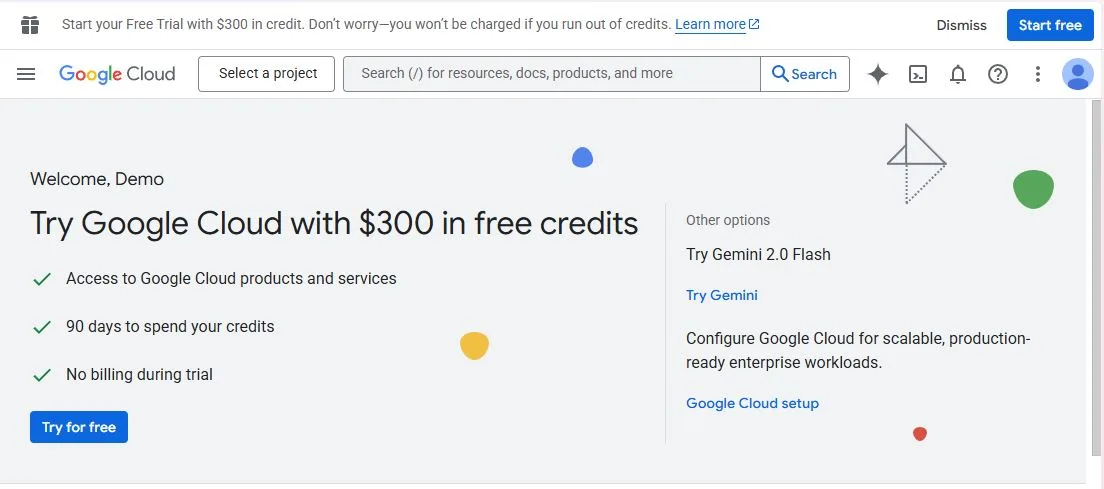
- At first welcome you may be offered $300 of free API credits. If not you can skip this step.
- Some users / banks may also be required to make a small refundable payment.
- Click Try For Free, or Continue/Get Started
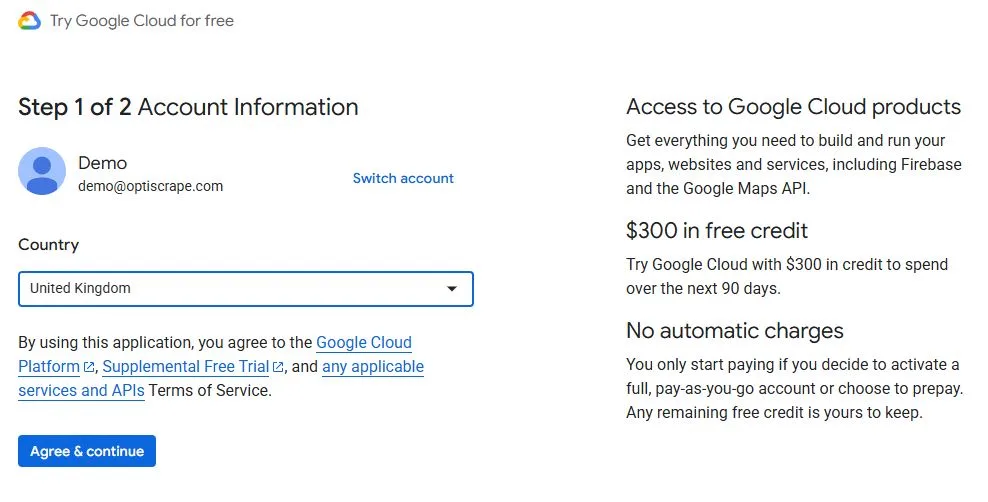
- Reconfirm your country
- Agree and continue
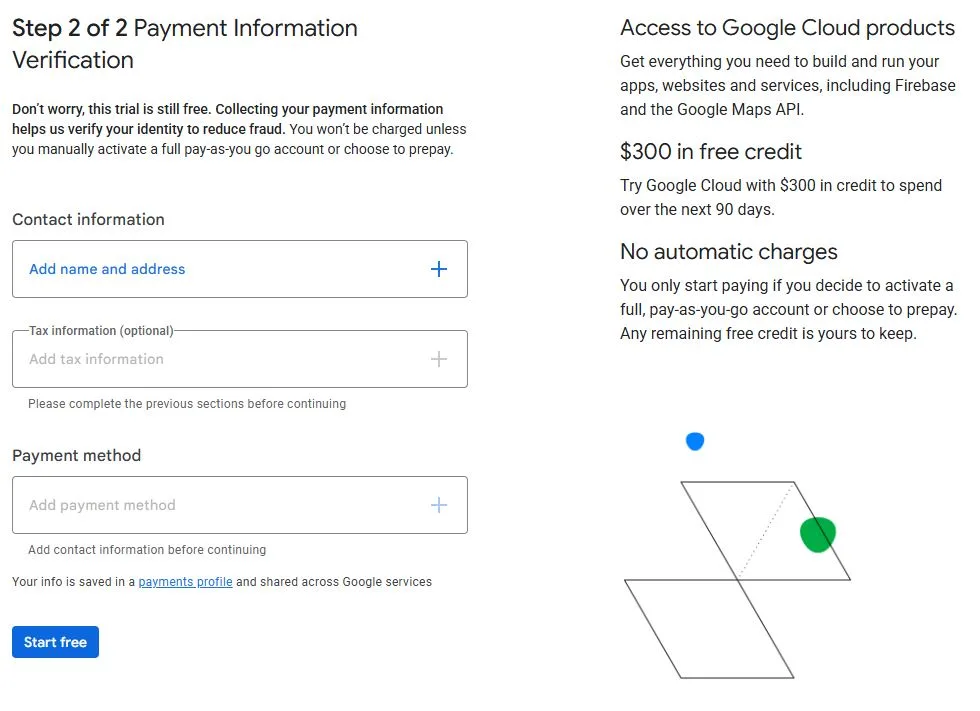
- Add your Contact info (can be organisation or individual)
- Add a Payment card – you may need to go through additional card verification steps if requested.
NOTE – If you are offered free credits the payment card is to prevent fraud and will not be charged. Even if you use up all your credits, the system won’t charge you unless you activate a full pay as you go account.
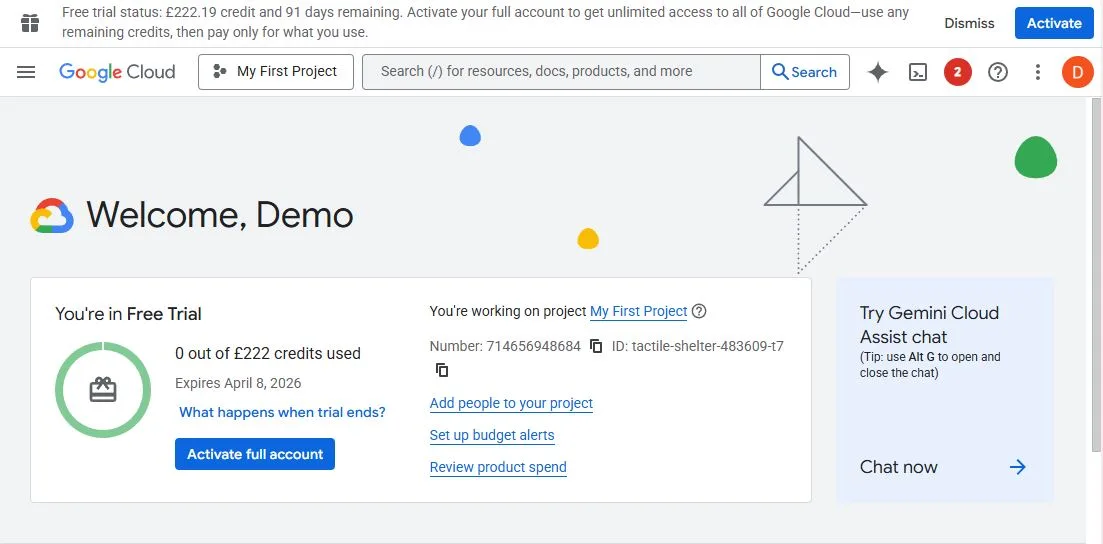
- Great job – you’re in!
- Note that your credits will show in your country’s currency now
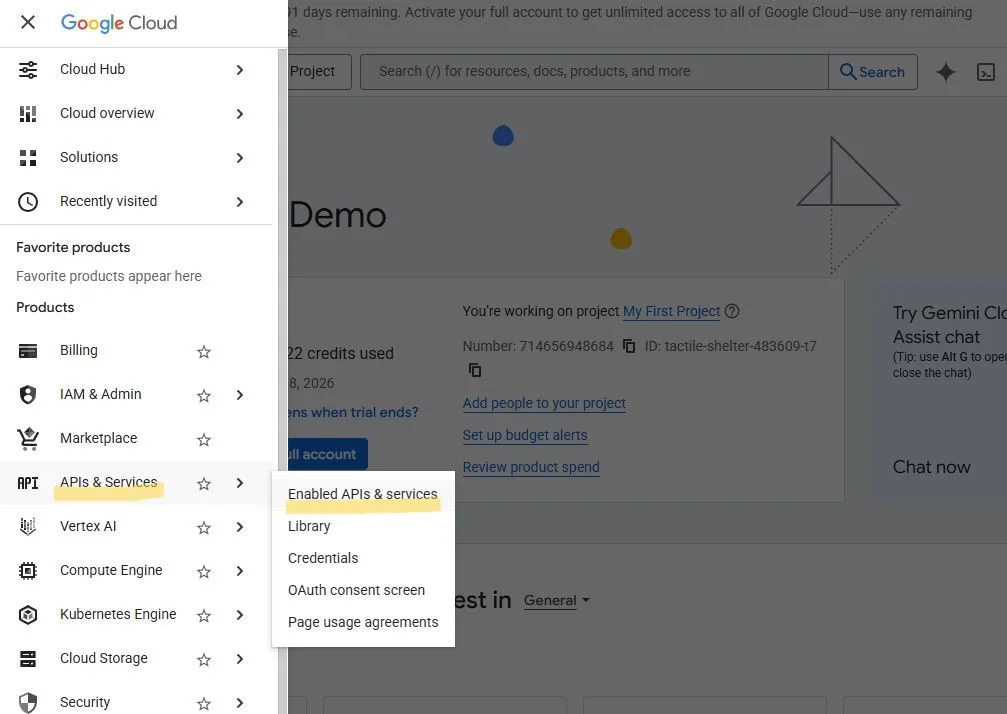
- At the top left are 3 horizontal lines that access the menu, next where it says Google Cloud.
Step 3 – Activate Google Places API on your account
- From the top left menu choose “APIs & Services”
- From the sub-menu that appears choose “Enabled APIs & Services”
You can also try directly going to: https://console.cloud.google.com/apis/dashboard
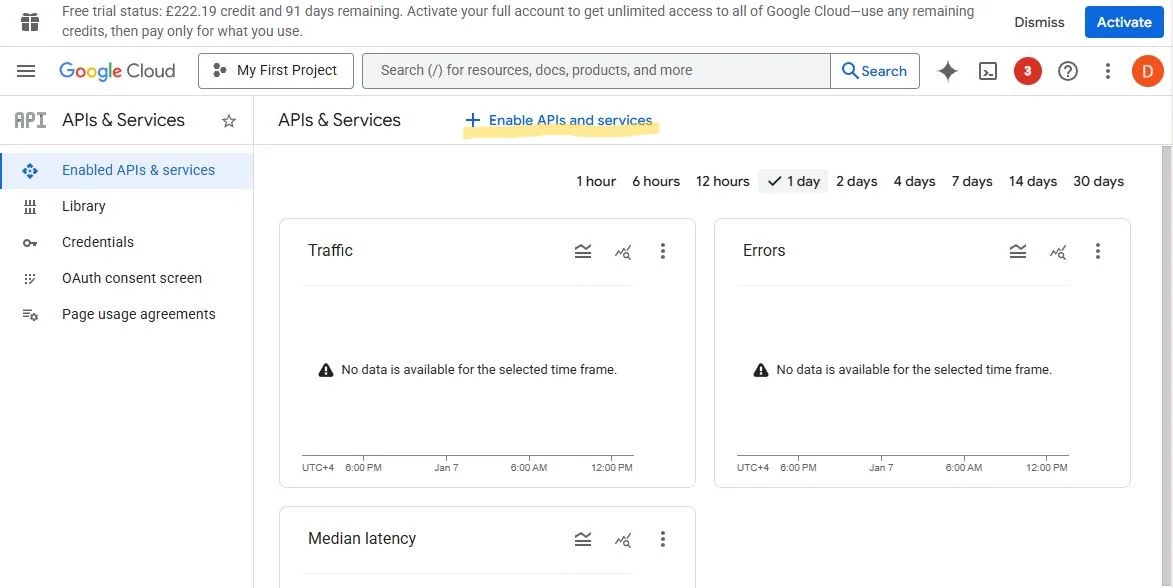
- At the top of the screen in this section click “+ Enable APIs and services“
Which is here: https://console.cloud.google.com/apis/library
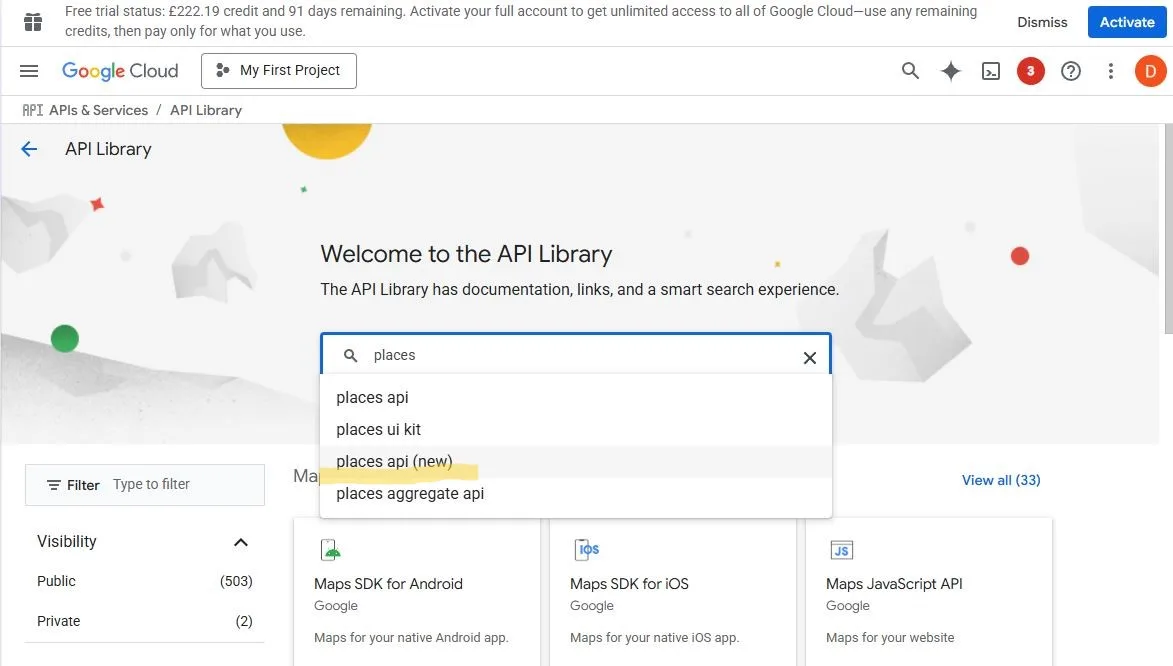
- In the search box start typing “places”
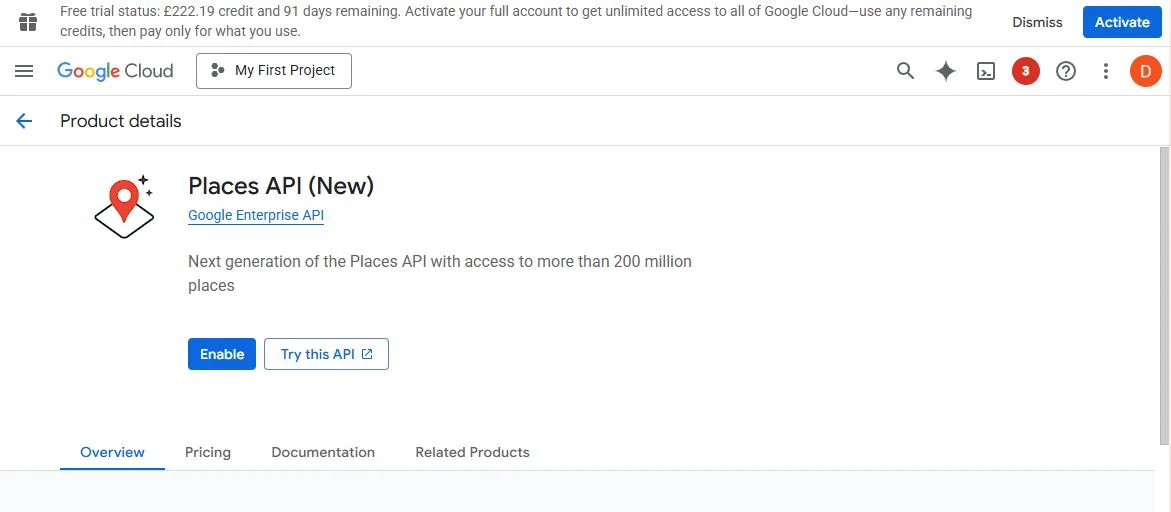
- In the list that appears select “places API (new)“
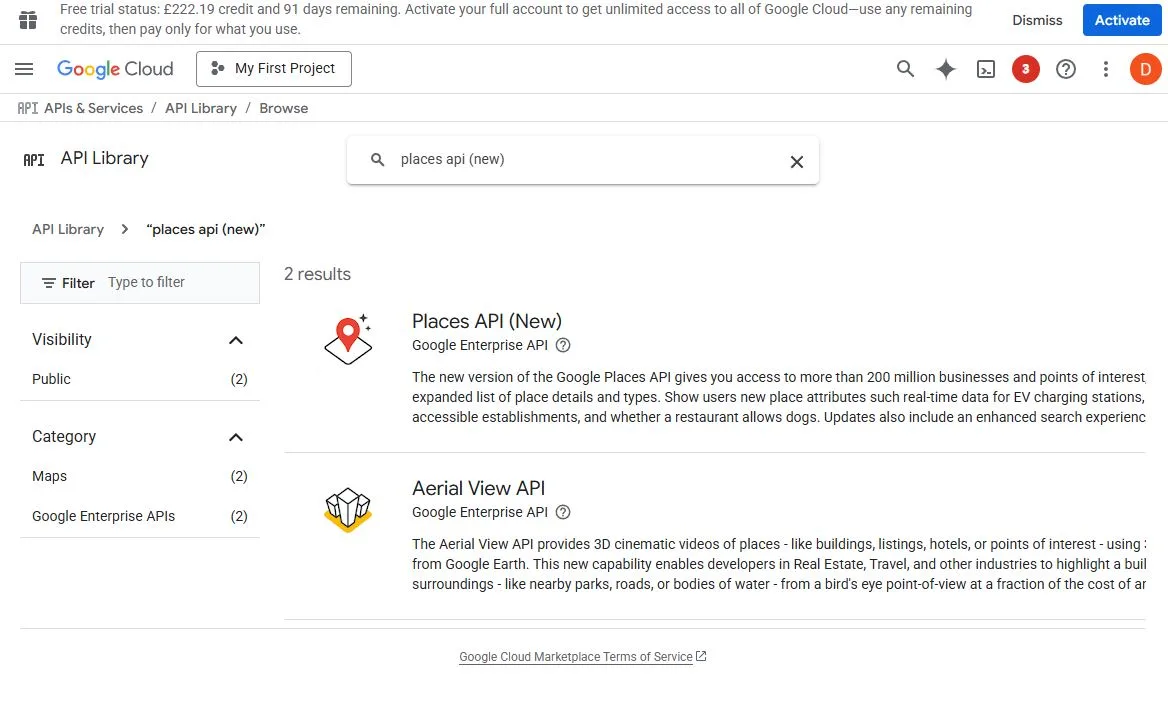
It is critical that you select the correct API here – other ones will not work with Placefetch. It must be Places API (New).
- From the results that appear, click Places API (New)
Or use direct link to: https://console.cloud.google.com/apis/library/places.googleapis.com
- Click “Enable”
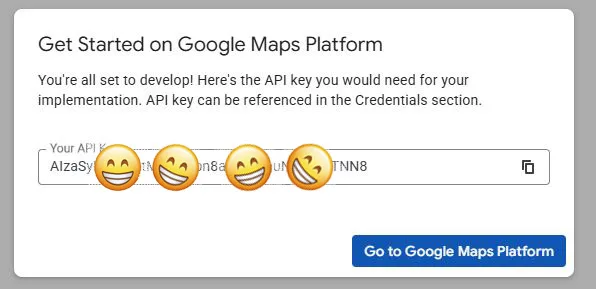
- In some cases you may get your API key popping up at this point in which case great job! Just copy from here into Placefetch and after a minute or so it should be active.
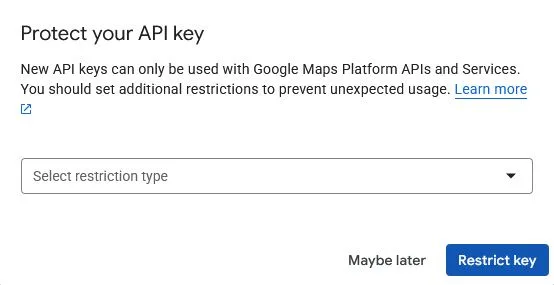
- If you got your key here you will be prompted to add restrictions – do not enter anything here and click “Maybe Later”
Optional – Create a New Key
- Go to: https://console.cloud.google.com/google/maps-apis/credentials
- Alternatively navigate here by going to APIs & Services > Enabled APIs & services > Click Places API (New) in the list > Keys & Credentials on the left menu
- Click “+Create Credentials” at the top
- Select API Key
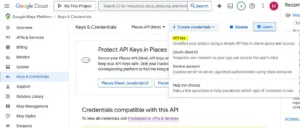
- That’s it 🙂 As this was created via the Maps credentials section it is automatically enabled to access all Maps API services including the Places (New) API.
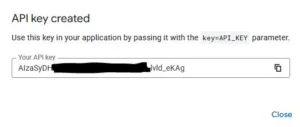
- Click the copy icon or select the key string and Ctrl-C
Final Step – Add to Placefetch and Test!
- Paste your API Key into the box and click Add Key
- A test button will appear – click test and if everything is OK a green message will appear
- If you get a red message, see our troubleshooting guide here: Troubleshooting