How to Search – Polygon
Polygon searches allow you to define irregular geographic areas and search within them. Because the Places API operates using rectangular boundaries, Placefetch internally represents your polygon as a collection of rectangular boxes that fit within the defined shape.
You can influence how these boxes are generated by adjusting parameters such as minimum and maximum box size, as well as how closely the system should conform to the edges of your polygon. These settings affect how the area is segmented and processed.
Polygon searches provide greater flexibility than simple rectangular searches and are particularly useful when working with municipal boundaries, custom territories, or non-standard geographic shapes.
Draw a Polygon
Snap to Grid – Before starting to define your polygon, if you would like your box points to be more consistently aligned to latitude and longitude decimal places, you can optionally use the Snap to Grid feature which is accessed via the slider button next to the Draw Box main button. Switch the feature on, and then choose your level of resolution. This is especially useful if your polygon will have vertical and horizontal edges as it will avoid creating angled areas which require more boxes to fill.
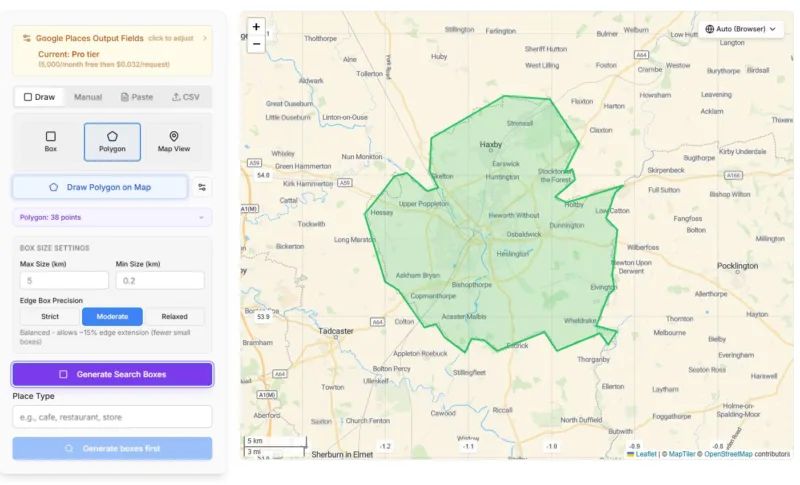
Click “Draw Polygon on Map” and the cursor will change to a crosshair when hovered over the map. Click to begin your polygon, and then lay down a sequence of points until the area that you want to select is surrounded. The example below for instance traces the municipal boundary of the City of York. The polygon will complete when you join your last point to the starting one, which will show as green when you hover over it. The polygon will display in green, and a new panel will appear on the left for you to generate boxes to fill it with.
TIP: If you use a high snap to grid setting and can create your polygon using vertical and horizontal lines you will need far less boxes than angled polygon edges will require.
Generating Search Boxes
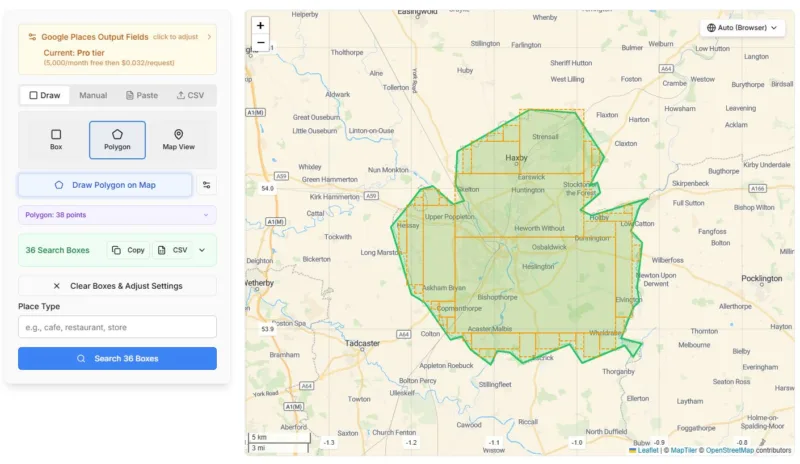
Because searches operate using rectangular boundaries, Placefetch fills the polygon with a set of boxes that collectively cover the defined area.
You can adjust:
- Minimum box size
- Maximum box size
- Coverage tolerance
These settings allow you to control how the area is segmented. Tighter coverage produces more granular segmentation, while broader settings generate fewer, larger boxes.
Different shapes and geographic sizes will require different configurations, and it may take a few adjustments to find settings that suit your workflow.
Once generated, the boxes are displayed on the map and can be used immediately for searching.
Tracking Progress
Each generated box is numbered, and progress is displayed in the side panel as the search runs. You can hover over boxes on the map to view their identifiers and monitor how the area is being processed.
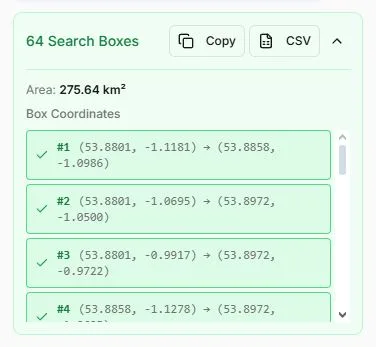
It is possible that during your searches, one or more boxes may fail to search – for example if connection drops or there is a problem at the Google end. If this happens the number of failed boxes will be shown at the end of the search. You can either scroll down the list and retry each one individually, or copy the failed boxes into their own list and search them again.
Saving and Re-using Boxes
Placefetch allows you to save generated box sets for reuse. This is particularly useful when you frequently search within the same geographic boundary.
Saved box sets can be:
- Copied to clipboard
- Downloaded as CSV
- Re-imported into future searches
By reusing previously generated boxes, you can maintain consistent geographic coverage across different search terms without redefining the original polygon.
